
More than an events directory — a tour of thirteen working services, from the calendar to the verifiable certificate.
You do not have to move your registration, your system, or any part of your process. A page that introduces your conference — its programme, its committees, its dates — in the place researchers in that field come to, and on the calendar and the map, with one link you point at from your own site. Registration and participation stay exactly where they are.
And if you later want to receive submissions or issue certificates here, the services are waiting — the choice is yours, event by event.
List your eventWorking from your first visit — most need no account.
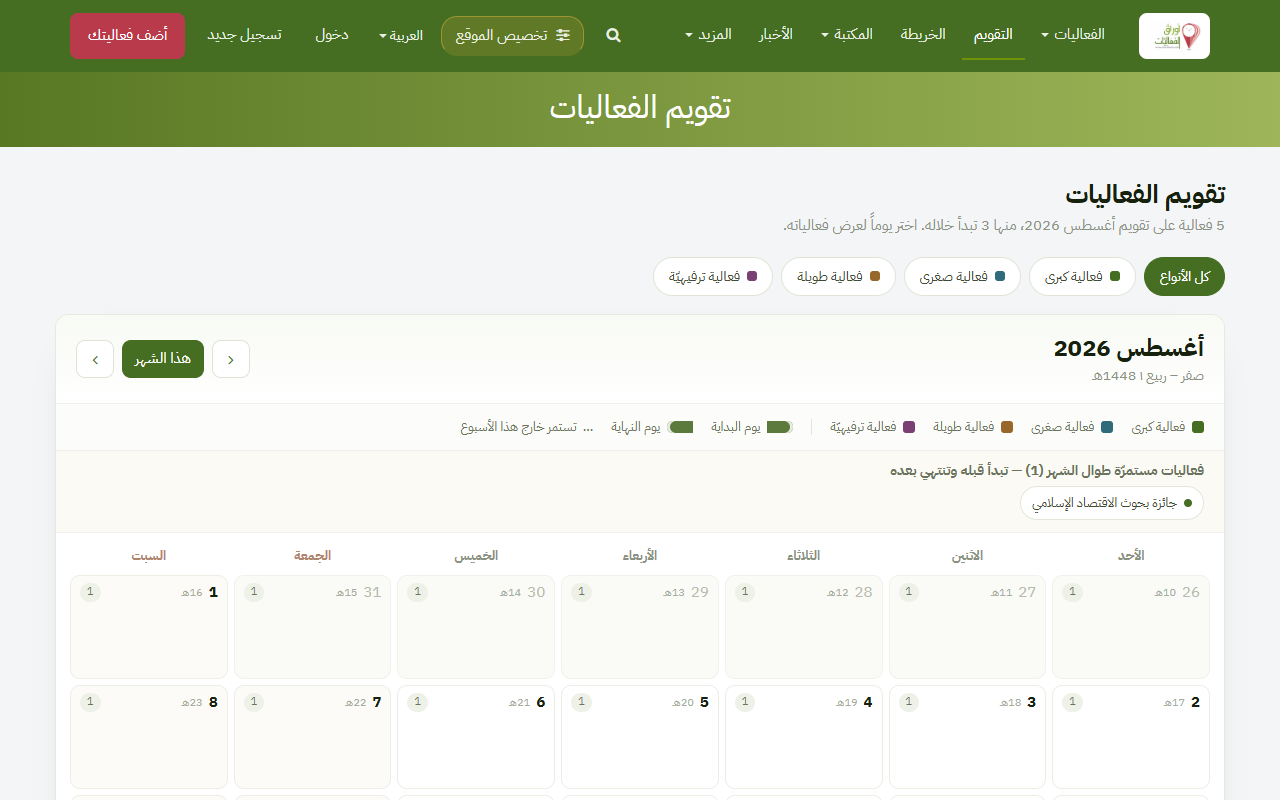
A month view showing events on their days, in both calendars, filterable by type — what is happening this month at a glance.
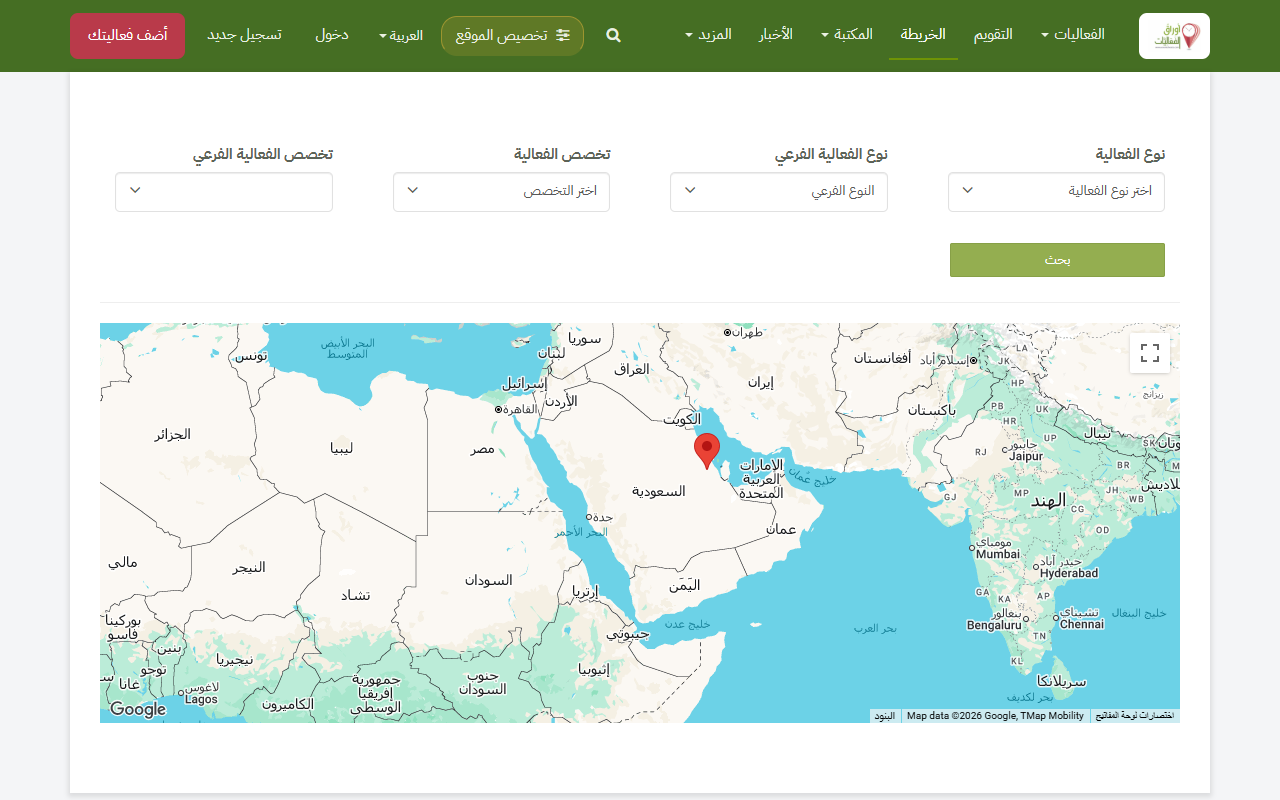
Upcoming events on a map, so you can see what is near you. Filtered by type, speciality and country.
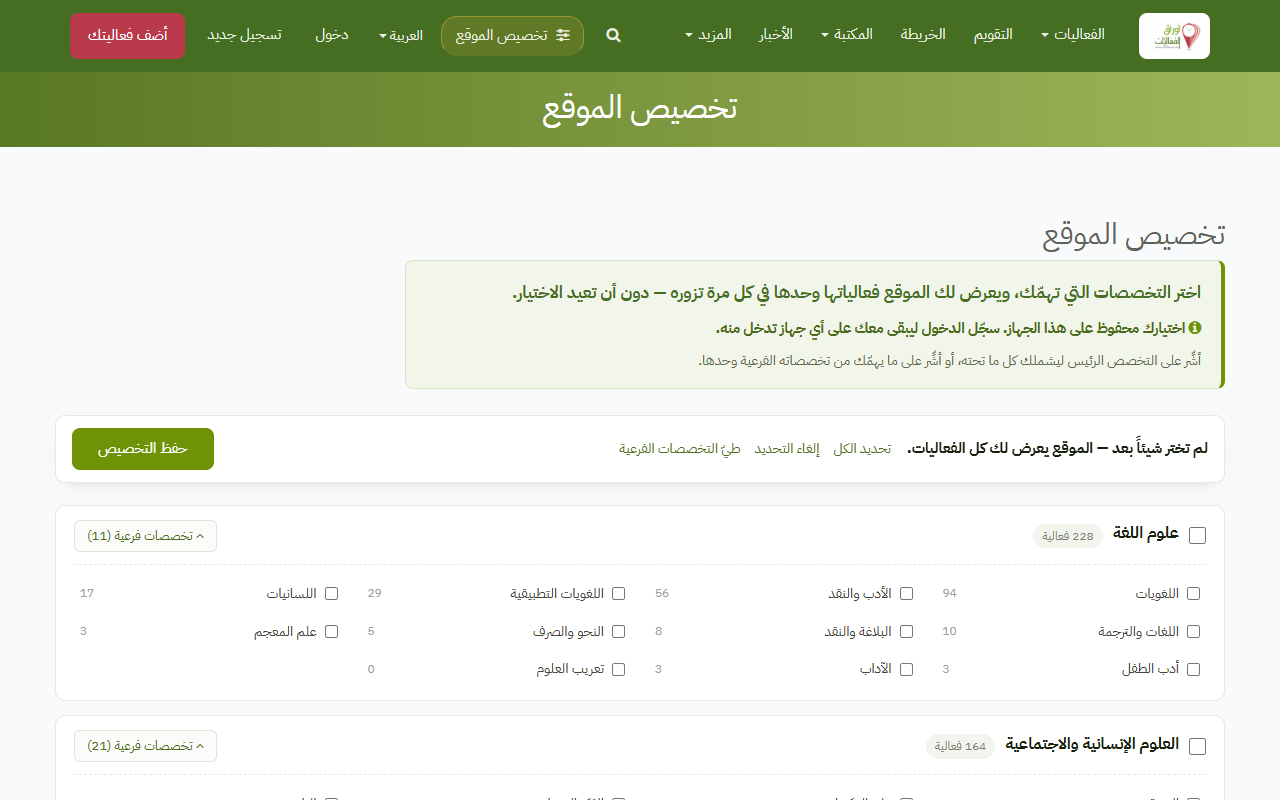
Choose your specialities once and every listing on the site narrows to them — the homepage, the archive, the calendar and the map. Reversible at any time.
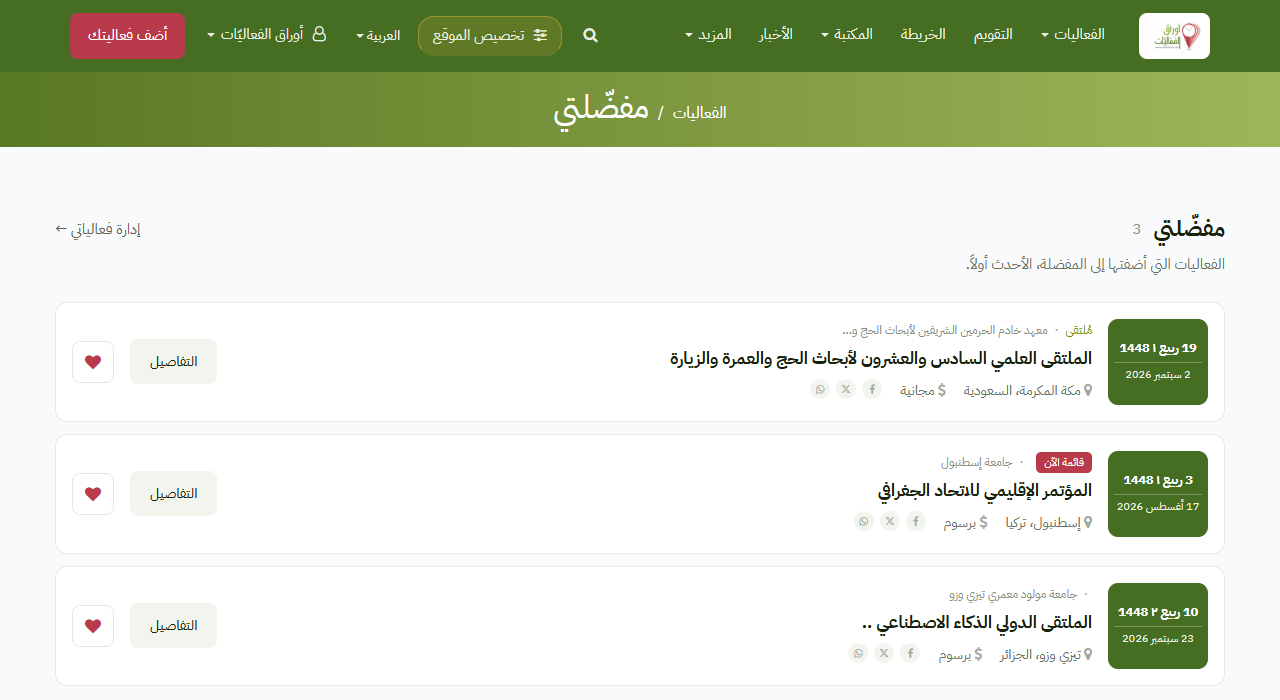
Save any event with the heart ♥ and find it under "My favourites" in your account menu.
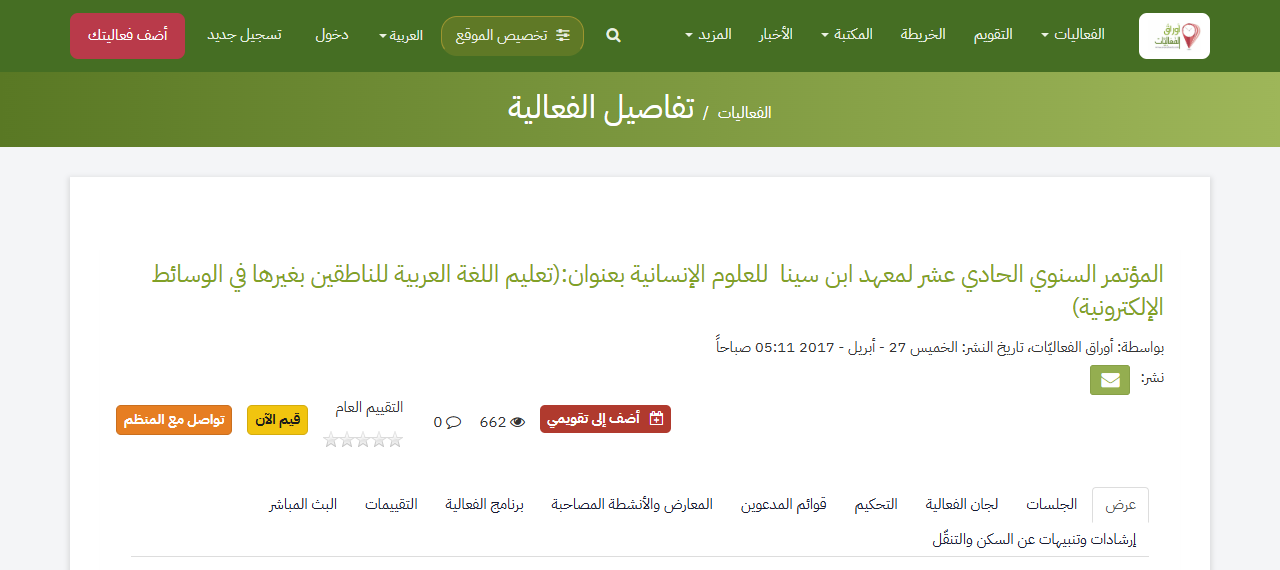
One link on an event page puts it into your phone or desktop calendar, with a reminder the day before.
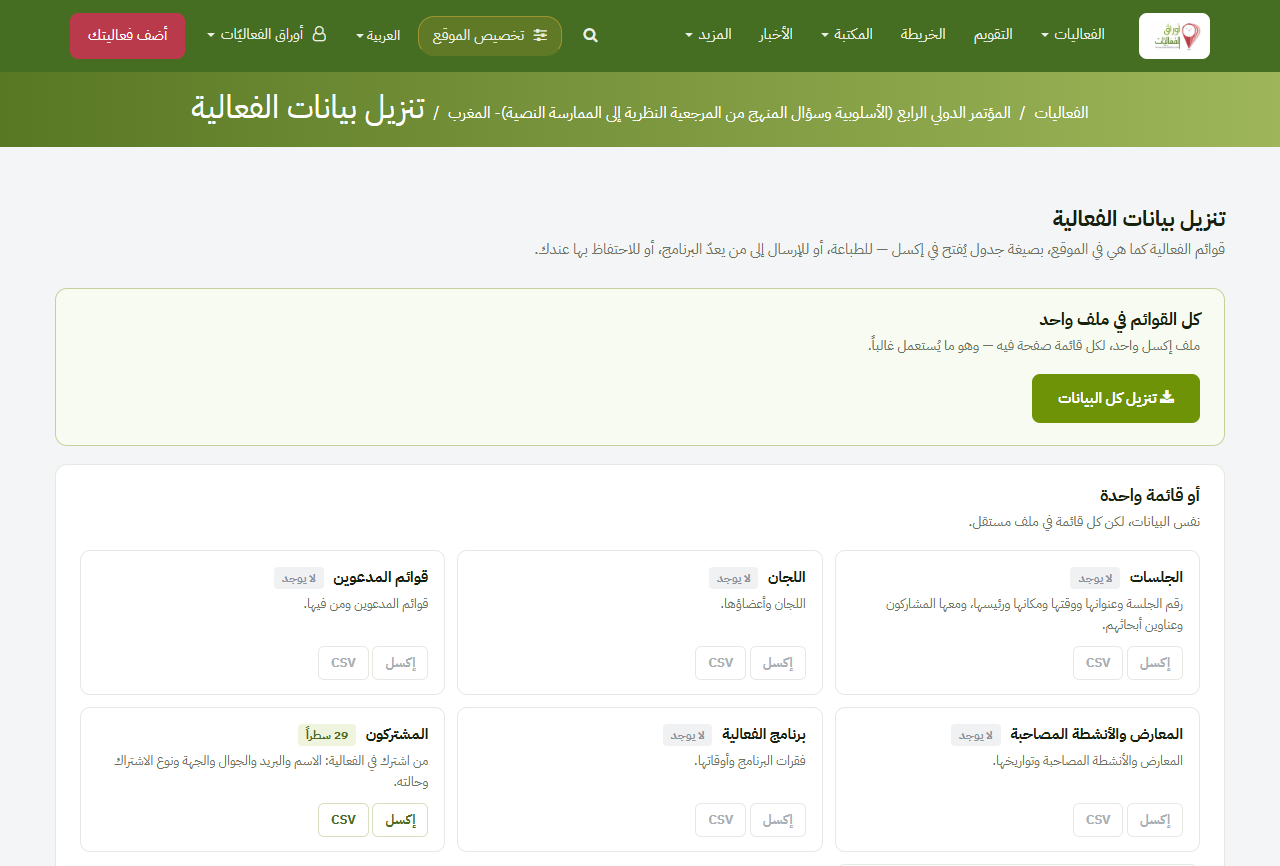
Every list an event holds as a spreadsheet: sessions, committees, invitees and the programme — and for the organiser, the subscribers and the submitted papers.
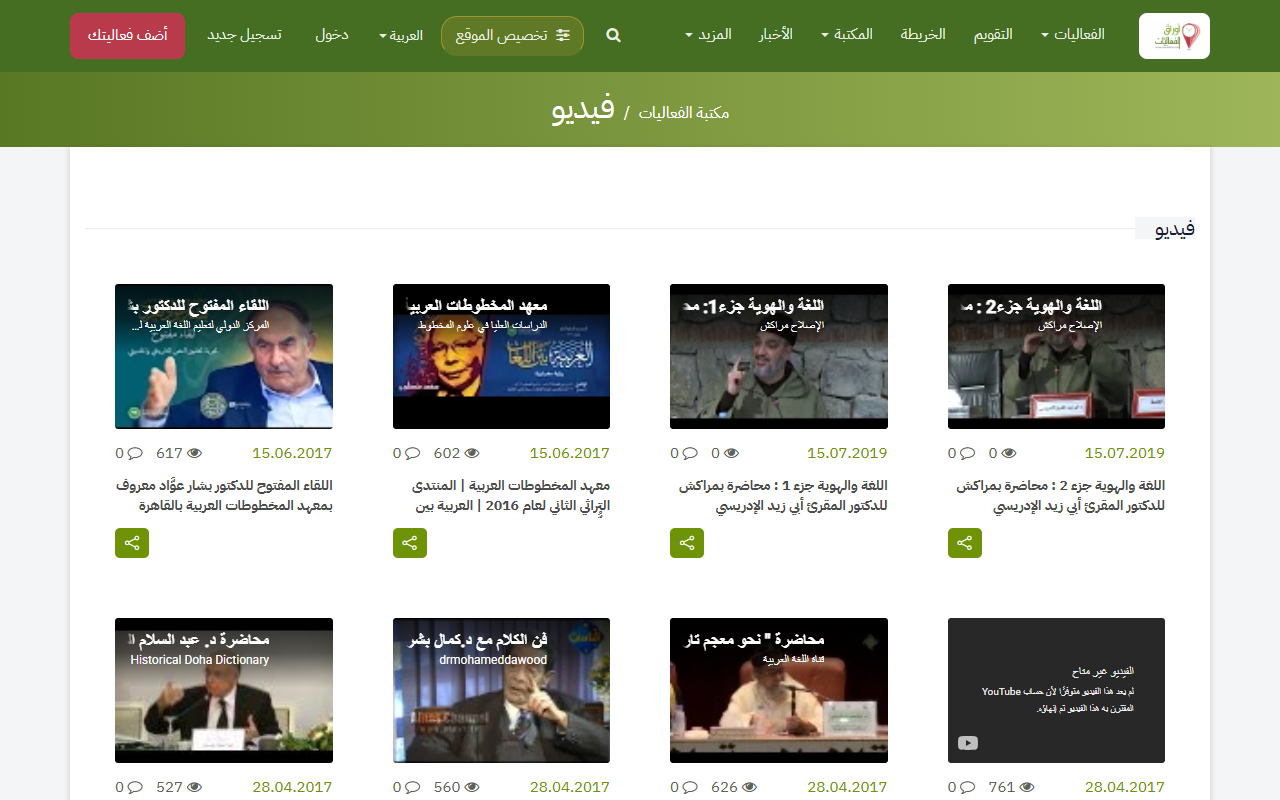
Books, papers, presentations and audio-visual material linked to events, arranged in sections.
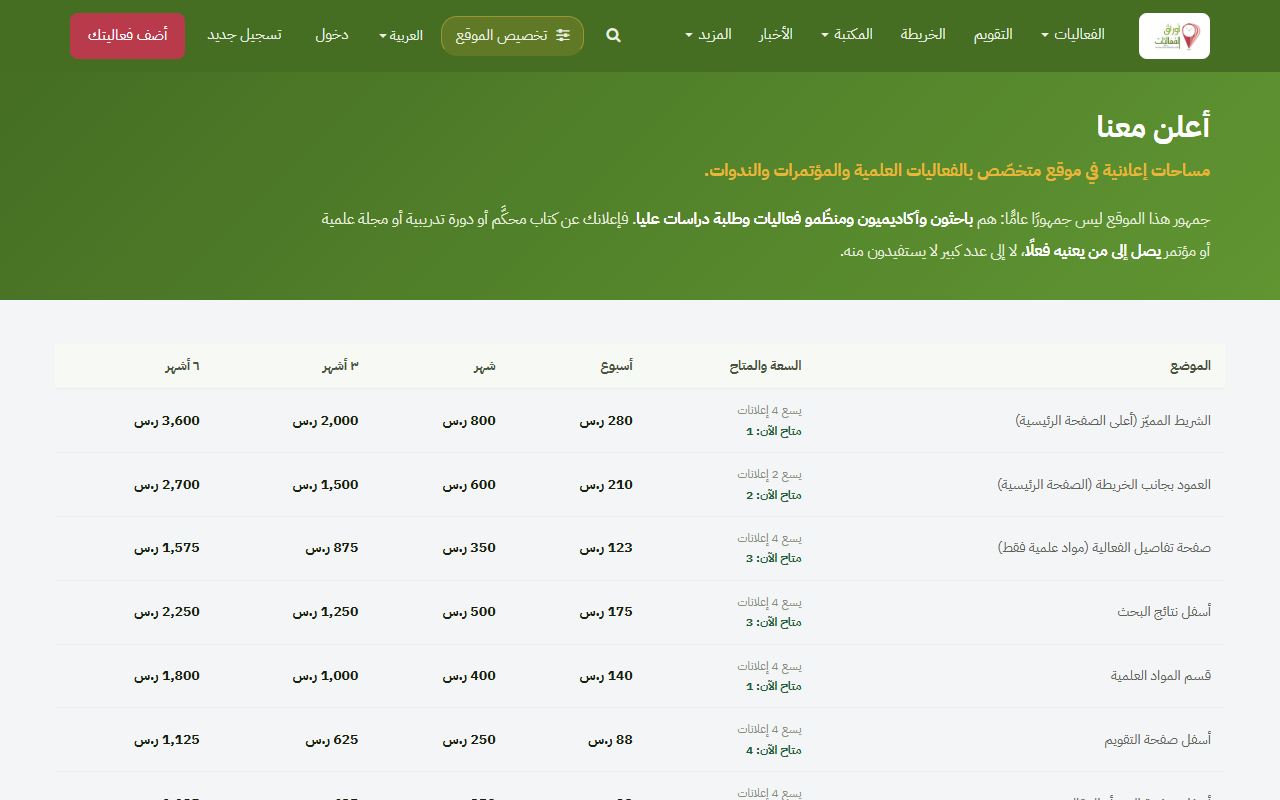
Advertising placements on the homepage, event pages and search results.
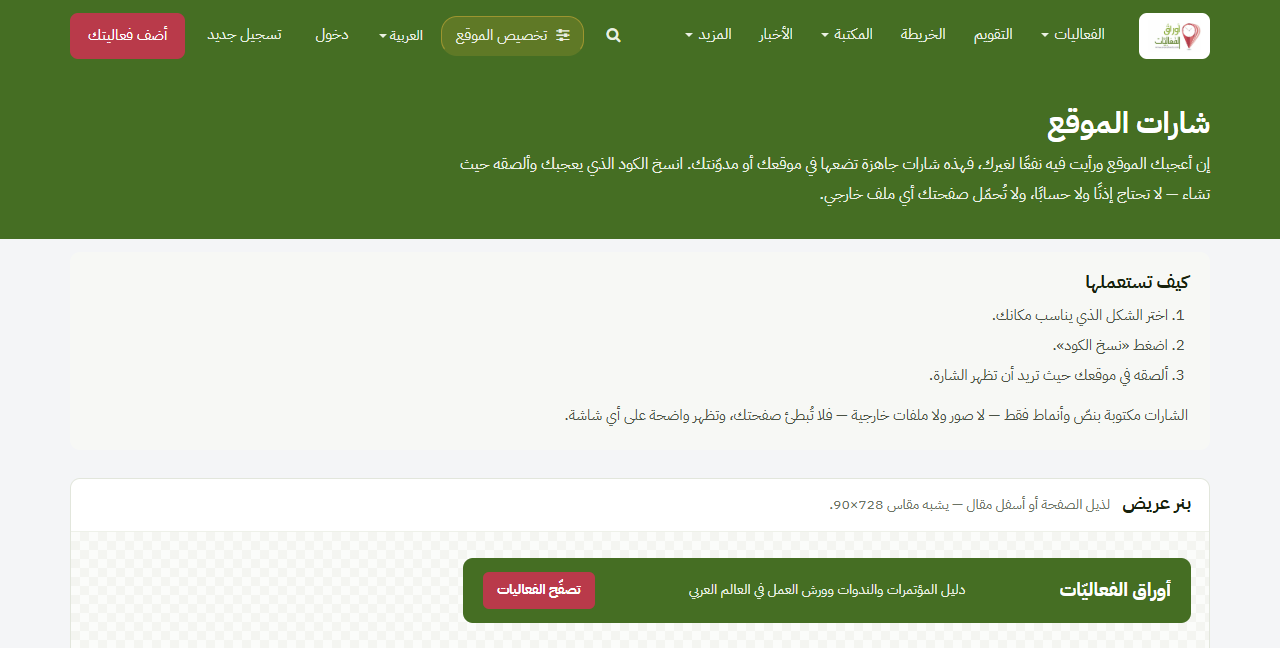
A badge for your own site or blog linking back to EventSheets — free, in four sizes. Sites that publish it are listed by name, with a link, on the «Friends of the site» page.
Every certificate issued here carries a printed verification code the site answers for at any time. This is a real certificate the site issued — press the button and check it yourself, now.
Check this certificate now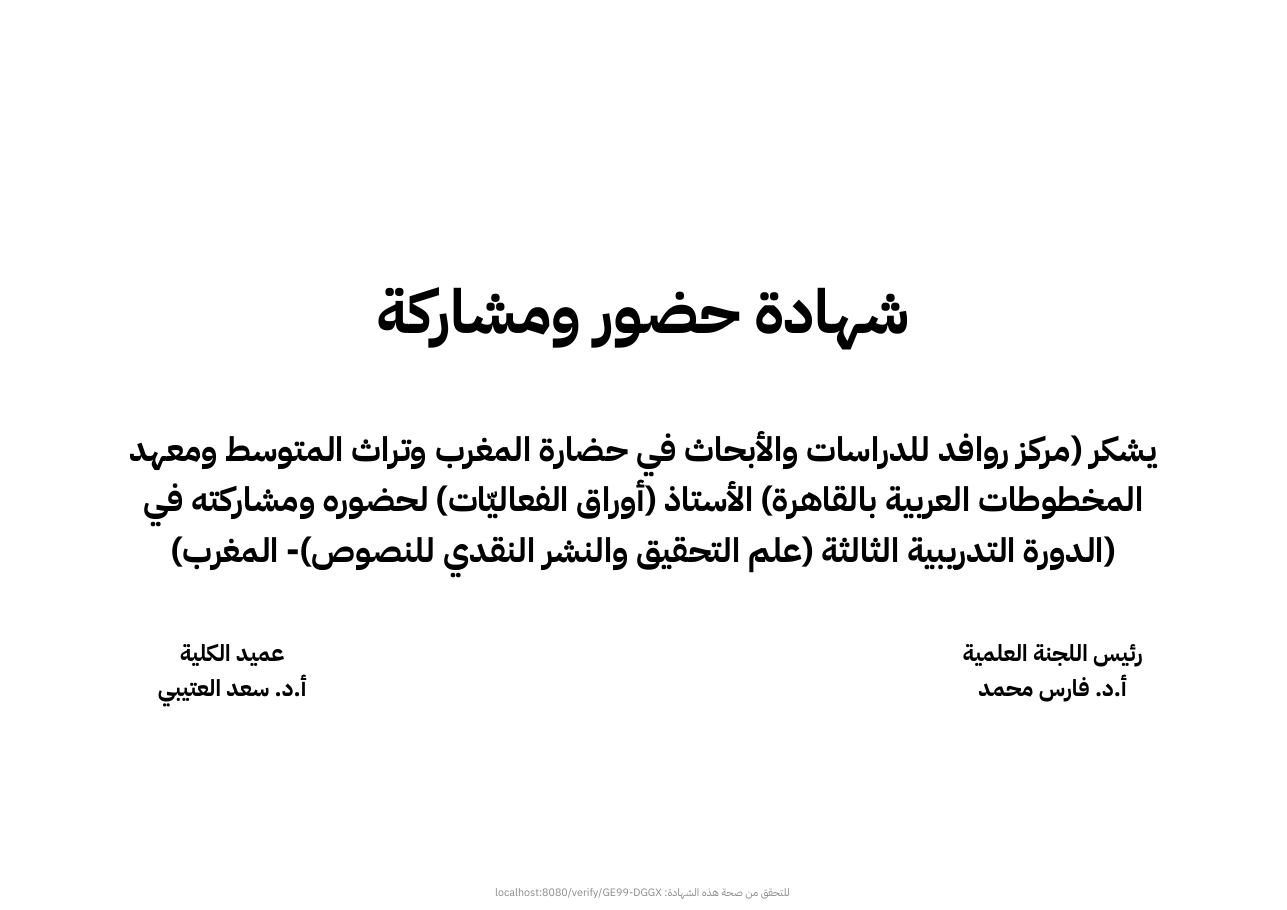
Everyone who files an event gets all of these tools — free.
A real dashboard for one of the site's own events, opened for you to see: registrations, audience, papers, certificates. Every organiser gets one for their event.
Open the demo dashboard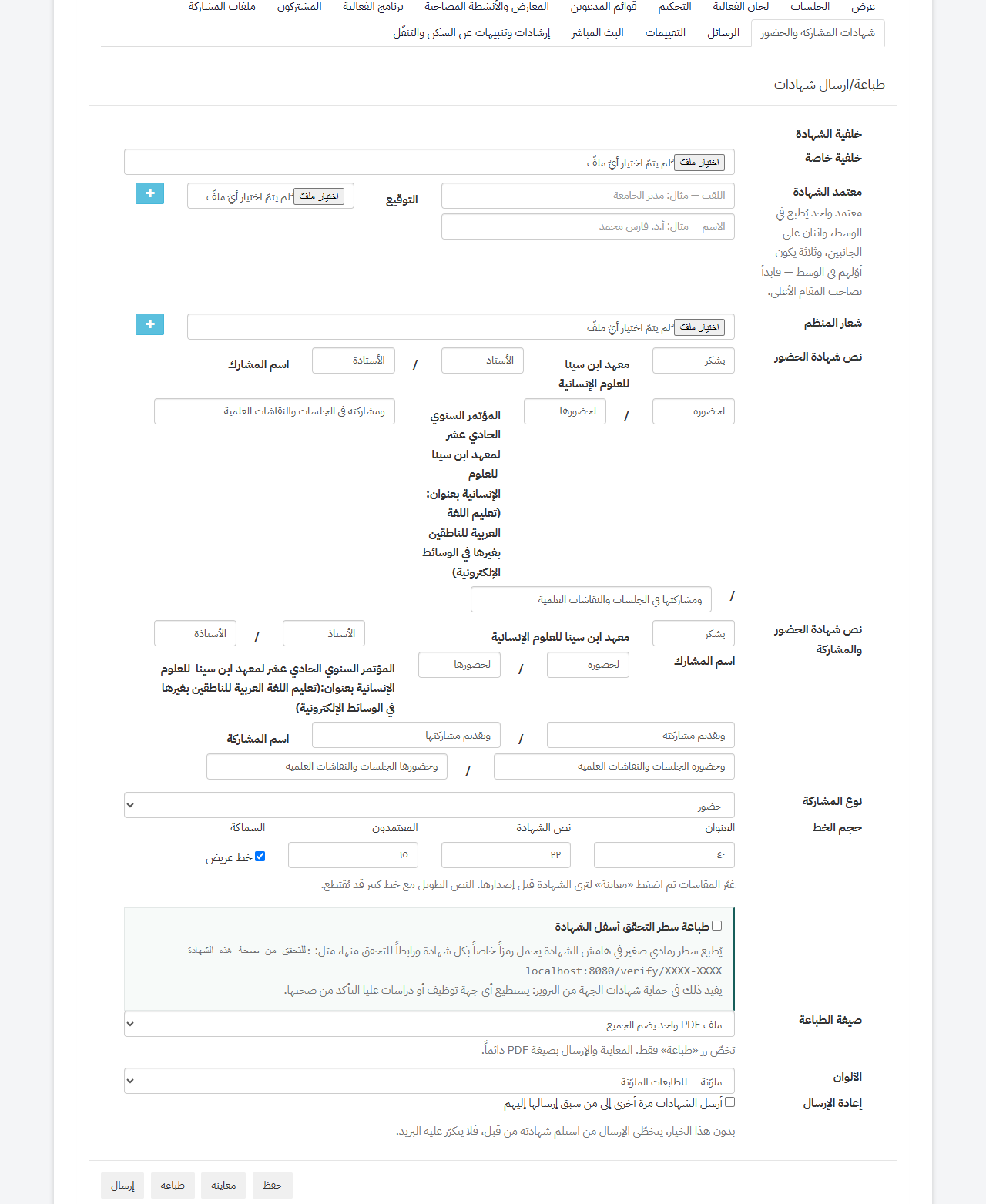
The organiser designs the certificate from their event page — logos, signatures, wording — then it is issued to every subscriber in the wording that fits them, masculine or feminine, and sent by email. Each carries a verification code proving it came from this site.
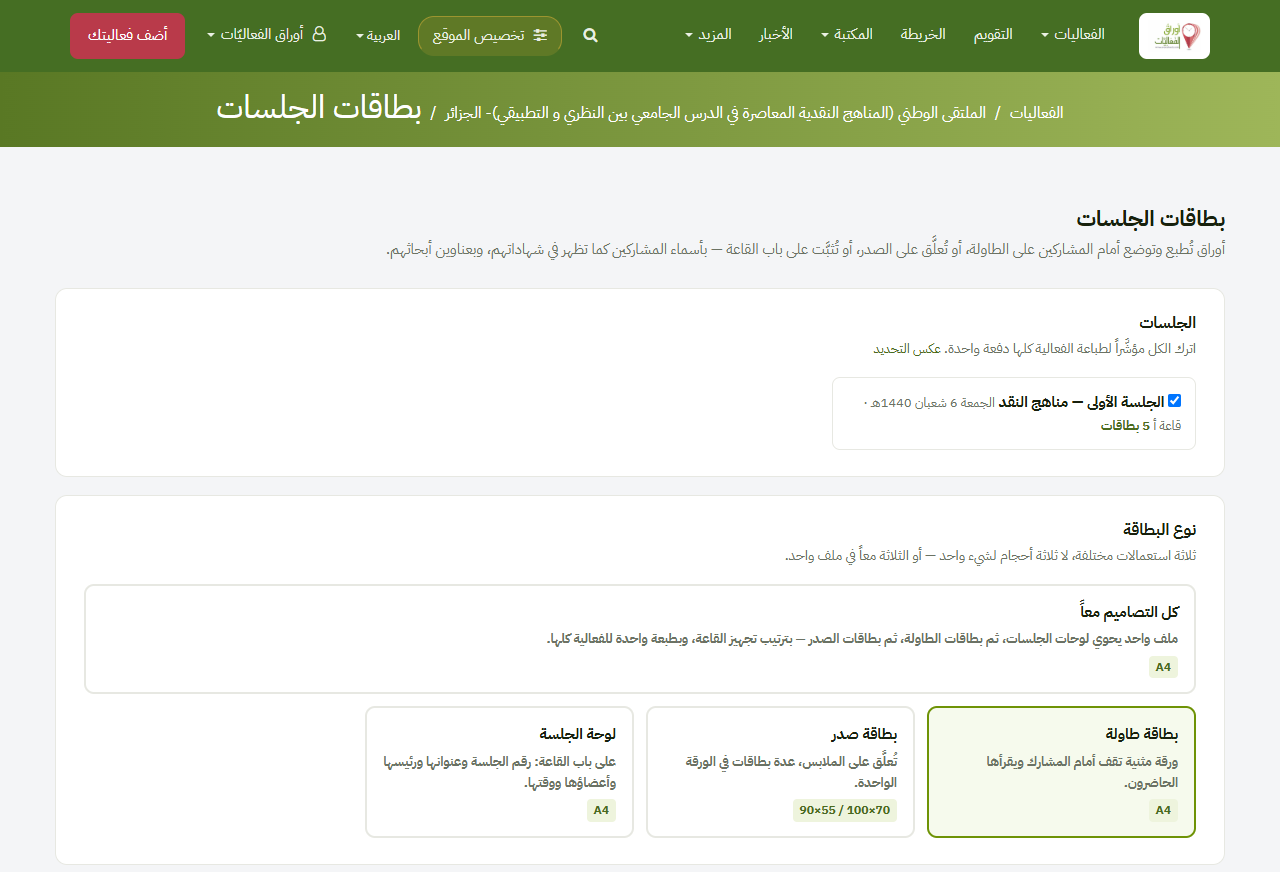
Printable name cards for participants: a folded card for the table, a badge, and a board for the hall door — at real sizes, ready to print.
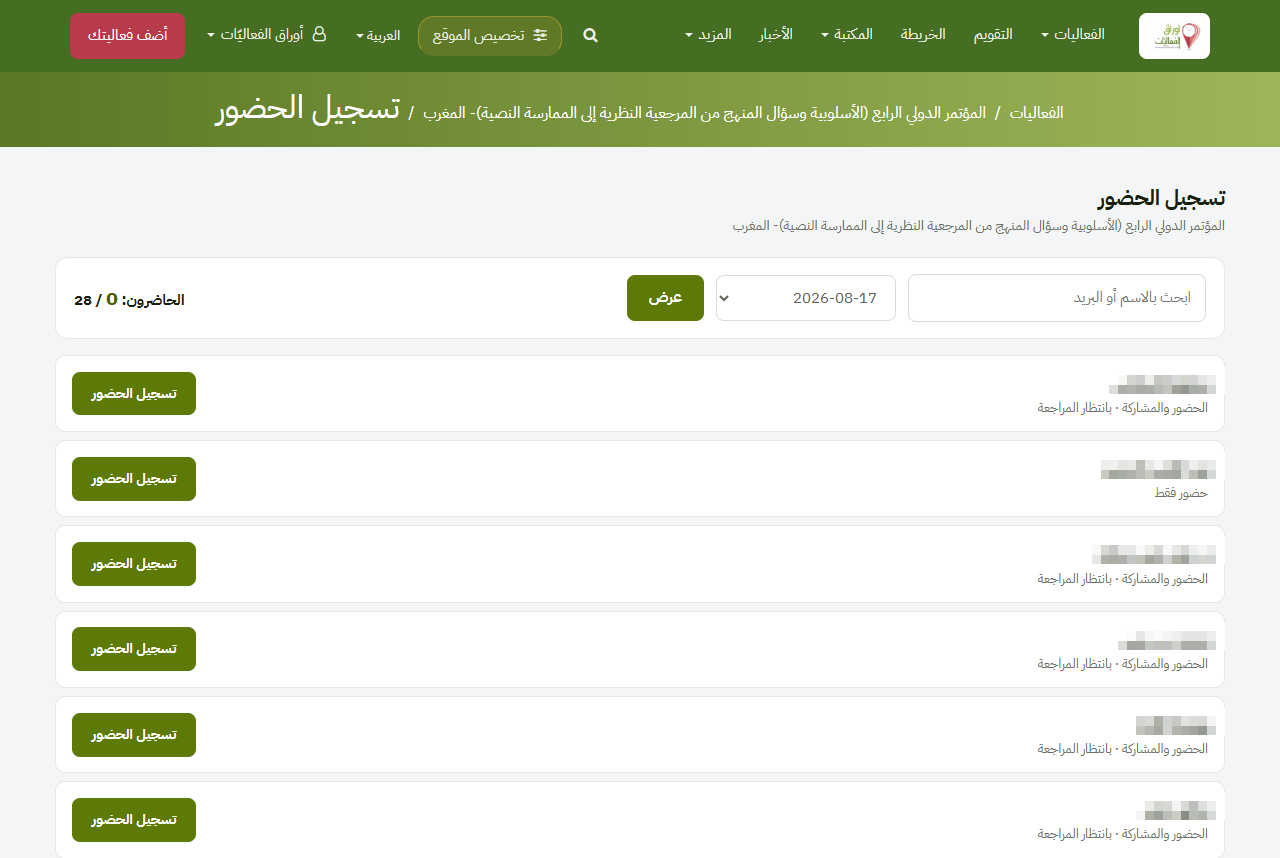
The attendee shows a QR on their phone at the door — or on their printed chest badge, which carries the same code — and the organiser scans it with an ordinary phone camera. Attendance is recorded in a second; no app, no device.
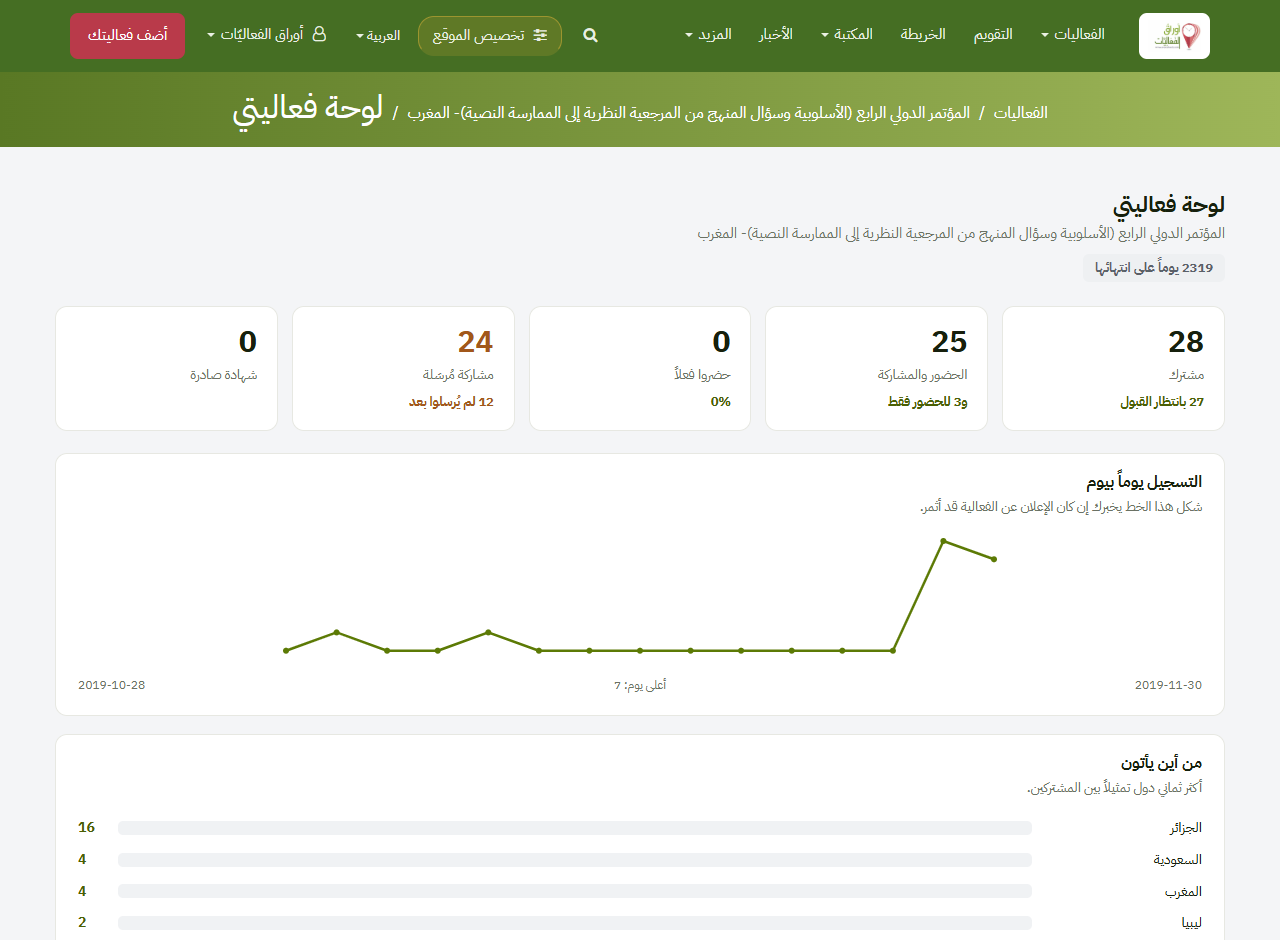
It shows how many registered for the event and from which countries, the registration curve day by day, how many actually attended, and who has not sent their paper — by name.
Create an account, file your event, and this dashboard and every tool are ready.
Create an account File your event